



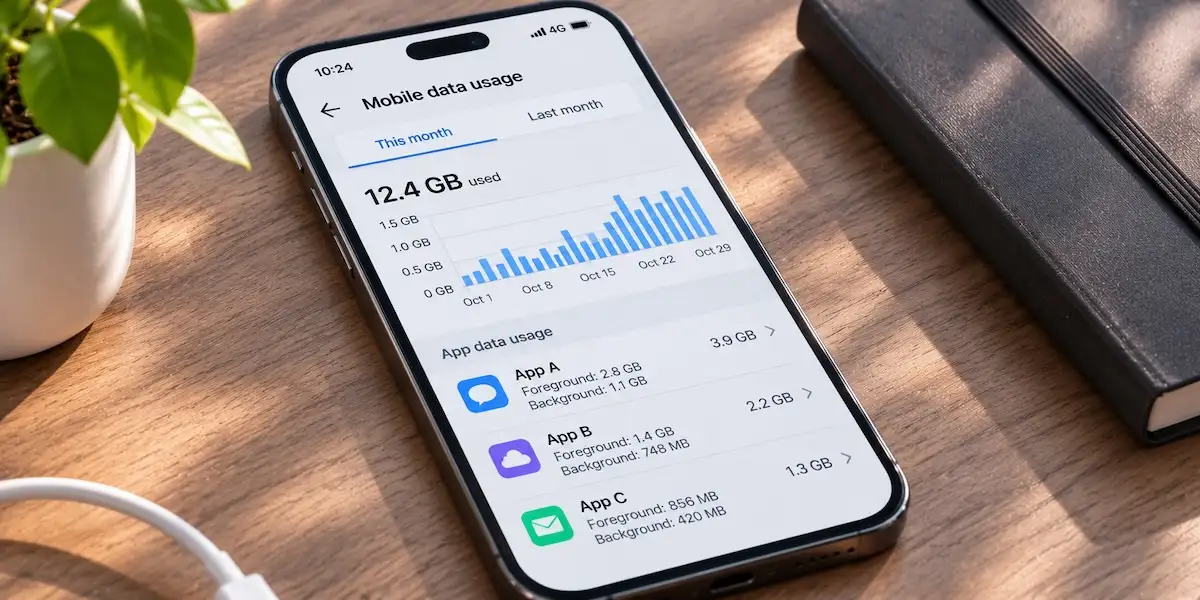
You close an app after checking a score. Later, the phone’s data counter shows that the app used mobile data again. That does not necessarily mean the whole screen remained open. Phones allow some work to continue in the background, and the operating system may also handle downloads, notifications or updates related to an app.
The need for frequent updates is particularly noticeable in live football betting, where scores and prices can change throughout a match. While the relevant screen is open, fresh information is needed to keep it accurate. Once a person leaves it, the app may still have permitted background tasks, depending on its design and the phone’s settings. It is better to check the device’s usage record than to assume every later megabyte came from a live match left running.
Closing a screen is not one single action
Moving to another app, locking the phone and force-closing an app are different actions. On iPhone, Apple says an app can run briefly after the user switches away before entering a suspended state. If Background App Refresh is enabled, suspended apps may check for new content. Force-closing an app can prevent it from running or checking for content again until it is reopened.
Android also has systems for scheduled background work. Its developer documentation describes jobs that can transfer or synchronise data when an app is not visible. The operating system applies restrictions based on conditions such as battery and network status; there is no rule that every app keeps downloading continuously whenever its icon is absent from the screen.
An update is another possible source of confusion. The data counter might show activity tied to the app or its store and system services, depending on the device’s reporting. The safest first step is to inspect which entry used data during the relevant period, rather than blaming the last app that happened to be open.
Identifying the source of mobile data usage
On an iPhone, the Cellular or Mobile Data settings show usage by app. Apple notes that a user can turn cellular access off for an individual app; that app then uses Wi-Fi for data. Background App Refresh has a separate control that can be disabled or set to Wi-Fi rather than Wi-Fi and cellular. The names and layout may vary by system version, but those are different decisions: blocking an app’s cellular access affects foreground use too, whereas changing background refresh targets one kind of activity.
Android settings vary across phone makers. Pixel’s help pages describe an app-data-usage view and controls for background data. Android’s Data Saver can restrict background use on a metered connection, with exceptions for apps a person permits. Google advises developers to respond to Data Saver by reducing unnecessary images, prefetching and other avoidable transfers. These controls reduce some activity; they cannot tell the user what every individual network request contained.
A short check is more useful than guessing from the battery icon:
- Note the data-usage period shown by the phone; reset the statistics only if a new measurement period is needed.
- Compare the app’s foreground and background usage where the device separates them.
- Check whether cellular updates, background refresh or unrestricted-data exceptions are enabled.
- Change one setting, then compare usage over a similar period and pattern of use.
The last step matters because a large download and many small synchronisations can produce a similar total. Data usage alone does not reveal whether an app was refreshing scores, loading images or transferring a new version.
Live screens and background tasks use data differently
When a person actively follows a football match, the service may fetch fresh score information and market prices repeatedly. Video, large graphics and automatic content loading can add to that use. If the screen is no longer active, any further traffic should be assessed against the device’s background controls. It is inaccurate to assume a page must have continued showing live odds invisibly merely because its data total increased.
The distinction extends to other products inside the same platform. Opening the Crash game page is a separate foreground action from following a live football fixture. If a phone reports data usage for the overall app, that figure may combine multiple visits and functions; it cannot, by itself, assign bytes to one match or one game. Browsing history or a controlled usage check can provide more context, but the device’s counter remains the reliable starting point for how much data was transferred.
For anyone making live betting decisions, a background notification should not be treated as a current price. Scores and markets can change before the app is reopened. The state visible after returning to the foreground is the one to inspect, and any accepted transaction has to be checked in account history. That is an information issue as well as a data-use issue: an alert is a prompt to look, not a record that a wager was placed.
Reducing data usage without losing essential functions
If background data is a concern, start with an app that the phone identifies as a substantial user. Restrict its background access, use Data Saver or switch background refresh to Wi-Fi where those options exist. Then check whether the feature you actually need still works at the time you need it. A messaging app, for example, has different requirements from a service opened only once a week.
The answer to the title question is usually specific to the app and the device. Some background transfers are intentional, some are avoidable, and some data may belong to updates or system services. The phone’s usage screen, paired with a measured change to one setting, is a better guide than the assumption that an app stops communicating the instant its window disappears.
