


Close Menu

    Subscribe to Updates

    Get the latest tech news

    Facebook X (Twitter) Instagram
    TechArenaTechArena
    • Home
    • News
    • Reviews
    • Features
      • Top 5
    • Startups
    • Contact
    Facebook X (Twitter) Instagram
    TechArenaTechArena
    Home»Apps»How to Pay for Your ShowMax Subscription Using M-Pesa
    Apps

    How to Pay for Your ShowMax Subscription Using M-Pesa

    Brand SpotBy Brand SpotJuly 1, 20202 Mins Read
    Facebook Twitter Telegram LinkedIn WhatsApp Email Pinterest
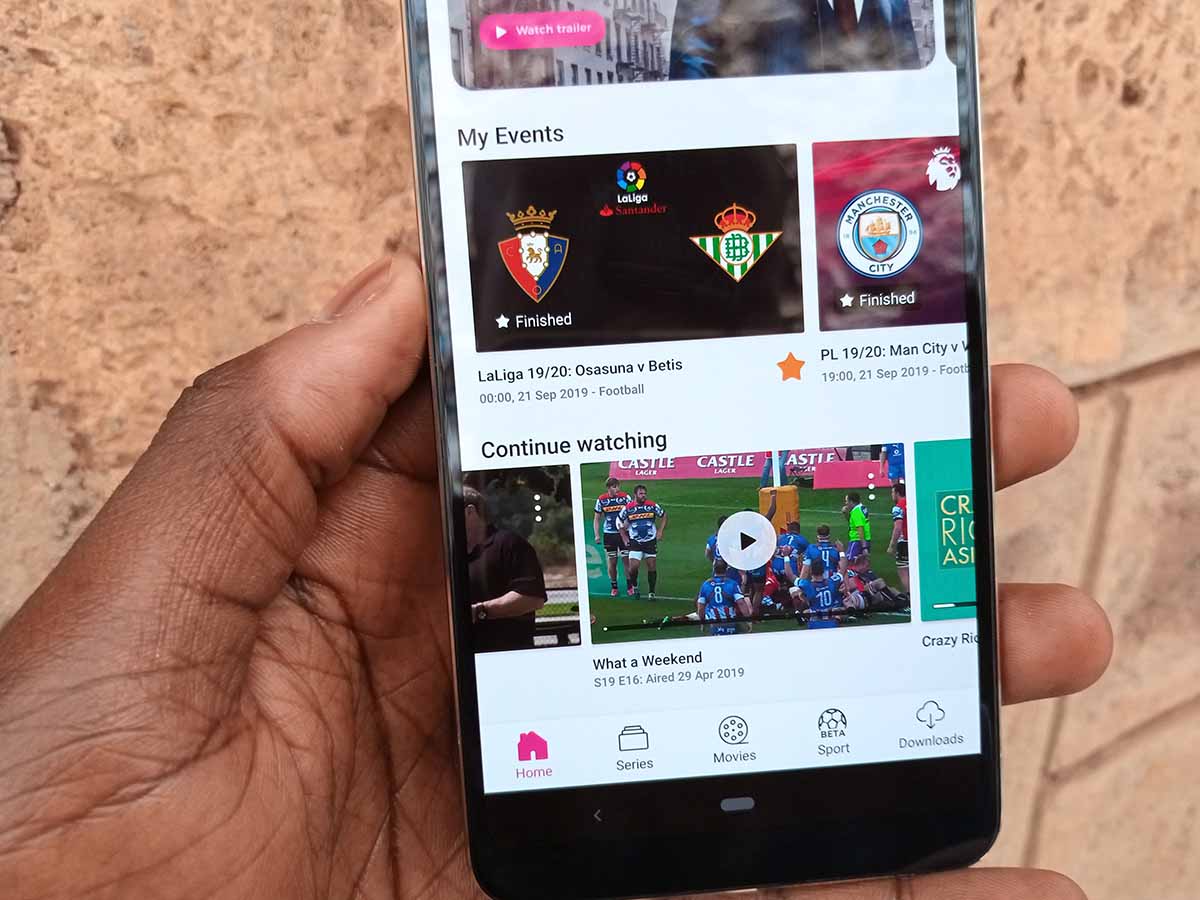
    Sports on showmax
    Sports on showmax
    Share
    Facebook Twitter LinkedIn WhatsApp Telegram

    If you are a ShowMax subscriber, you have a handful of options to use when you want to pay for your subscription. You can use M-Pesa, PayPal, Credit or debit card, ShowMax Voucher or you can choose to add it to your DStv account if you have one.

    If you are like me, M-Pesa may be a convenient way to make payments and this is the case with services like ShowMax. It is straightforward and given that most Kenyans are used to it, it probably is the most familiar option.  

    The steps below will show you what to do if you want to pay your Showmax subscription using M-Pesa.

    Pay for ShowMax Using M-Pesa

    • Log into Your ShowMax account. If you do not have one, you can create one by going to ShowMax’s website here.
    • When logged in, tap on the menu button (three lines) on the bottom right corner if you are using the mobile app or hover over your profile name on the top right corner if you are on the website.
    • Tap on “My Account” which will be on the drop-down menu on the website and towards the bottom of the page on the app.
    • Choose the “Manage Subscriptions” option
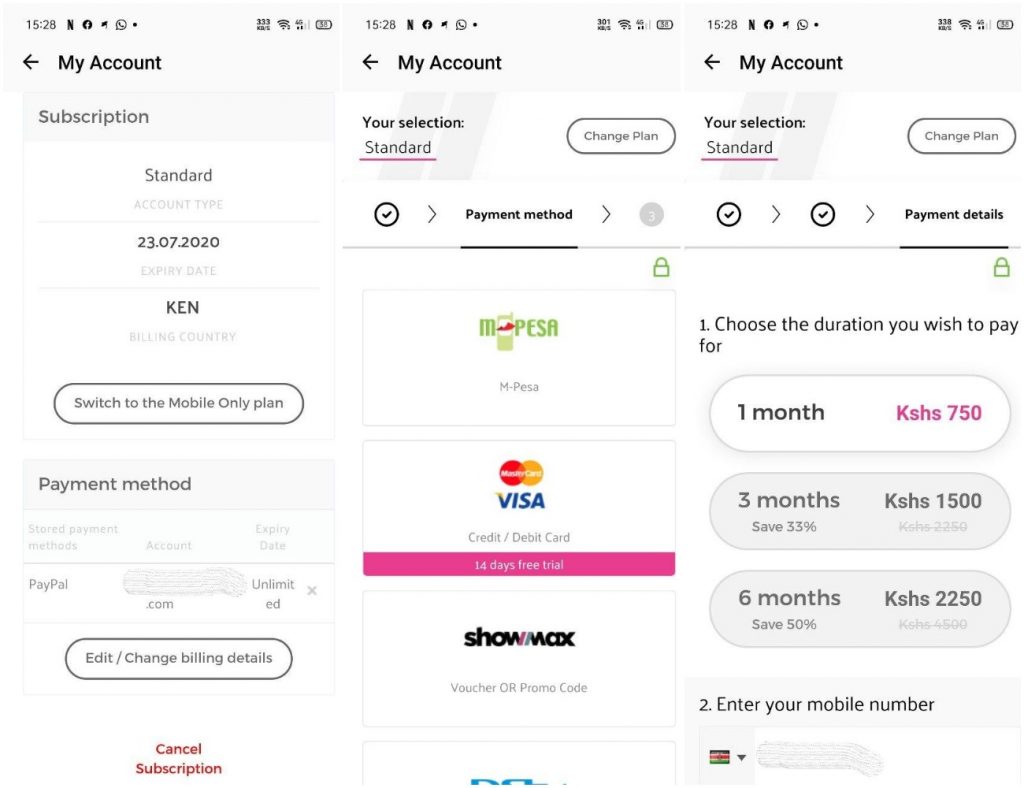
    • You will see your subscription which you can change. If you already have an account and have a different payment method selected, you will see it there, tap on “Edit/Change billing details.
    Pay showmax with mpesa
    Pay showmax with mpesa
    • On the next page, select M-Pesa as your payment method and choose how many months you want to pay for (1,3 or 6 months).
    • Enter your mobile phone number (M-Pesa registered number) and tap on “Pay With M-Pesa”.
    • You will get a prompt on your phone to enter your M-Pesa pin to initiate the payment. After that, the money will be deducted from your M-Pesa account.

    Now Read: Showmax Announces Mobile-Only Plan for Half the Price

    showmax
    Brand Spot
    • Website
    • Facebook
    • X (Twitter)
    • Instagram
    • LinkedIn

    Brand Spot by Techarena allows companies to share their stories directly with TechArena's audience. To promote your brand and get featured, email [email protected]

    Related Posts

    Inside Ampersand the Startup Powering East Africa’s Electric Motorcycles

    December 11, 2025

    What You Need to Know About KCB and Visa’s New Tap to Phone Payment Solution in Kenya

    December 11, 2025

    Accelerated entry: How East Africa Leapfrogged into the Cloud Age

    December 11, 2025

    Comments are closed.

    Latest Posts

    Neeraj Pradhan appointed as CEO of Liquid Intelligent Technologies Kenya

    December 12, 2025

    Inside Ampersand the Startup Powering East Africa’s Electric Motorcycles

    December 11, 2025

    Visa Showcases 22 Startups at Africa Fintech Accelerator Demo Day in Cape Town

    December 11, 2025

    Airtel Money Partners With I&M Bank To Expand Digital Payments Reach Across Kenya

    December 11, 2025
    Advertisement
    Editor's Pick

    Inside Ampersand the Startup Powering East Africa’s Electric Motorcycles

    December 11, 2025

    What You Need to Know About KCB and Visa’s New Tap to Phone Payment Solution in Kenya

    December 11, 2025

    Accelerated entry: How East Africa Leapfrogged into the Cloud Age

    December 11, 2025

    How Buying Data on M-PESA Opened New Doors for Sheila

    December 10, 2025
    © 2025 TechArena.. All rights reserved.
    • Home
    • Startups
    • Reviews

    Type above and press Enter to search. Press Esc to cancel.