


Close Menu

    Subscribe to Updates

    Get the latest tech news

    Facebook X (Twitter) Instagram
    TechArenaTechArena
    • Home
    • News
    • Reviews
    • Features
      • Top 5
    • Startups
    • Contact
    Facebook X (Twitter) Instagram
    TechArenaTechArena
    Home»News»Facebook Messenger Now Let’s Users Unsend Messages, here’s how to do that
    News

    Facebook Messenger Now Let’s Users Unsend Messages, here’s how to do that

    Kaluka wanjalaBy Kaluka wanjalaFebruary 6, 20192 Mins Read
    Facebook Twitter Telegram LinkedIn WhatsApp Email Pinterest
    Facebook messenger
    Facebook messenger
    Share
    Facebook Twitter LinkedIn WhatsApp Telegram

    Have you ever hit the send button on Facebook Messenger and instantly regret your action? Most of us have been there and depending on the situation. Of course you can try to explain yourself but the best option of all is being able to unsend the message.

    If you have ever been in such a situation, you may want to know that Facebook is finally rolling out the feature to Messenger. We have seen something similar on WhatsApp, a Facebook owned company, so it is not strange to see it on Messenger. We first heard of this feature sometime last year and back then only Mark Zuckerberg had access to it. He said that the company was still testing it and it was to roll out once the tests were complete.

    With this feature, you will not be able to unsend all messages but will rather be limited with time. Once you send a message, you have up to 10 minutes to unsend the message. 10 minutes is good enough time if you sent the message to the wrong person or if you have changed your mind. This feature will also be helpful for people who tend to overreact to situations and may do so then send a confrontational message that they regret sending as soon as it has been sent. The feature can also be useful if you notice some typos in your message.

    How to Unsend Facebook Messenger Messages

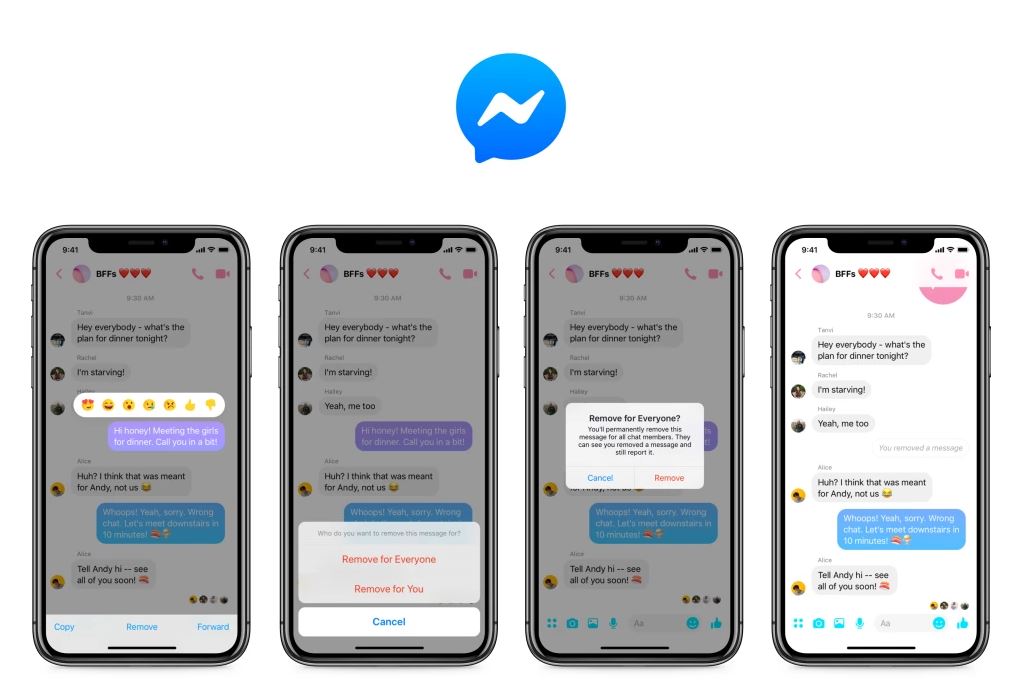
    So, how exactly o you unsend Facebook Messenger Messages? The process is straight forward as you will see below.
    Unsend facebook messenger messages
    • Open Facebook Messenger app on your phone or desktop and navigate to the conversation you want to delete.
    • Tap and hold on the message.
    • At the bottom of the screen, you will see “delete” option, tap on it.
    • Choose “remove for everyone”. This is key as is the option that will remove the message from all the inboxes of the people you had sent to. That is all, the message will be deleted as long as you do this within 10 minutes of sending it.

    Now Read: Facebook To Integrate WhatsApp and Instagram with Messenger

    facebook facebook messenger
    Kaluka wanjala
    • Website
    • Facebook
    • X (Twitter)
    • LinkedIn

    Editor at TechArena. I cover all things technology and review new gadgets as I get them. You can reach me on email: [email protected]

    Related Posts

    5 Blockchain Trends to Watch in 2026: Insights from D24 Fintech’s CTO

    January 21, 2026

    Sun King Unveils HomePlus Max: A Solar Home System Powerful Enough for TVs, Laptops and Multi-Room Lighting

    January 21, 2026

    Safaricom to Launch Tokenised Wi-Fi With Hourly and Daily Plans

    January 21, 2026

    Comments are closed.

    Latest Posts

    Infinix Note Edge Specifications and Price in Kenya

    January 21, 2026

    5 Blockchain Trends to Watch in 2026: Insights from D24 Fintech’s CTO

    January 21, 2026

    Sun King Unveils HomePlus Max: A Solar Home System Powerful Enough for TVs, Laptops and Multi-Room Lighting

    January 21, 2026

    Safaricom to Launch Tokenised Wi-Fi With Hourly and Daily Plans

    January 21, 2026
    Advertisement
    Editor's Pick

    5 Blockchain Trends to Watch in 2026: Insights from D24 Fintech’s CTO

    January 21, 2026

    Why SMEs Need Tailored Digital Banking Solutions

    January 20, 2026

    Meaningful AI May Matter a Lot More than Powerful AI

    January 20, 2026

    How Youth-Led Tech Is Reshaping Kenya’s Tourism Economy

    January 20, 2026
    © 2026 TechArena.. All rights reserved.
    • Home
    • Startups
    • Reviews

    Type above and press Enter to search. Press Esc to cancel.