


Close Menu

    Subscribe to Updates

    Get the latest tech news

    Facebook X (Twitter) Instagram
    TechArenaTechArena
    • Home
    • News
    • Reviews
    • Features
      • Top 5
    • Startups
    • Contact
    Facebook X (Twitter) Instagram
    TechArenaTechArena
    Home»Gadgets»How do you lock a user session on On Windows 11?
    Gadgets

    How do you lock a user session on On Windows 11?

    JosephBy JosephJuly 28, 20222 Mins Read
    Facebook Twitter Telegram LinkedIn WhatsApp Email Pinterest
    Share
    Facebook Twitter LinkedIn WhatsApp Telegram

    At home or work, we all have accepted reasons why our desktops/Laptops should always have active session Logins, especially if you are in an open organization where computers are shared. This can also come in if you have naughty buddies who like doing pranks on you.
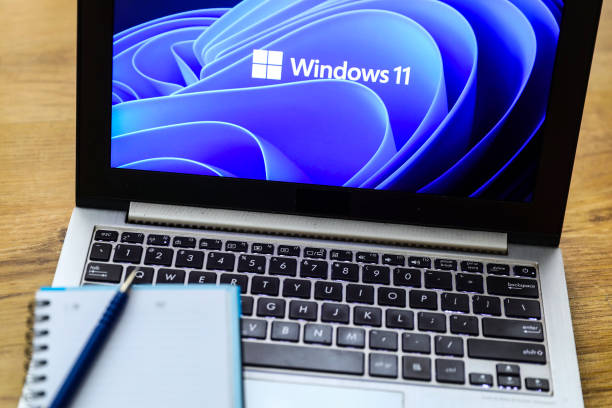
    To cut the story short, a password is required to access a genuinely secure user session. Therefore, only you may log in and access the information on your Windows 11 machine, including any sensitive data it may contain.

    On Windows 11, there are two ways to lock your user session. The first method is manual, while the second calls for a bit of configuration change that enables your computer to use Bluetooth technology to detect your absence and lock your session automatically.

    Method 1: Traditional Locking

    Let’s start with the first, which is Windows 11’s manual session locking. Remember that this method works with earlier releases of Microsoft’s operating system. Simultaneously press the Ctrl, Alt, and Del buttons on your keyboard. By using this keyboard shortcut, you can cause a behavior unique to your computer’s Windows 11 operating system and access a list of features, the first of which is “Lock.” Input your password when you return, and your session will be the same.

    Method 2: Use of Bluetooth Technology

    For this method, your smartphone’s Bluetooth technology must be used in conjunction with your PC to detect your absence for this to work. As usual, Turn on the Bluetooth on Both your Computer and Laptop and navigate to Windows 11’s Settings on your machine.

    To enable dynamic lock, go to Start > Settings > Accounts > Login Options. Select your smartphone from the list of available Bluetooth devices after selecting. Your Windows 11 PC will lock automatically a minute or so after you leave your phone’s Bluetooth range when you walk away from it

    Windows Windows 11 tutorials
    Joseph

    Related Posts

    LG Electronics Showcases “Affectionate Intelligence” at CES 2026

    February 4, 2026

    Infinix Note Edge Launched in Kenya with Dimensity 7100, Android 16 & Self-Healing Battery

    February 3, 2026

    Samsung Galaxy Tab A11 Series is Redefining Education for Kenya’s Next Generation

    January 30, 2026

    Comments are closed.

    Latest Posts

    Agridex and Tradeflow Partner to Channel Institutional Capital into Kenya’s SME and Agriculture Trade

    February 12, 2026

    KCB and Visa Roll Out Business Credit Card for Kenyan SMEs

    February 12, 2026

    Konza Technopolis Joins Global ‘7 Wonders of Future Cities’ Initiative

    February 12, 2026

    LG Introduces Locally Adaptive AI Smart Home Solutions for Africa at InnoFest 2026 MEA

    February 12, 2026
    Advertisement
    Editor's Pick

    Deepfake Scams and AI-Generated Malware Are Now Top Cyber Risks for Kenya, ESET Warns

    February 5, 2026

    The Smartphone as an AI Platform: What On-Device AI Really Means for Africa

    February 4, 2026

    What You Need to Know About Kenya’s National Electric Mobility Policy (e-Mobility Policy)

    February 4, 2026

    How Data Centers Are Reshaping Africa’s Power Market

    February 2, 2026
    © 2026 TechArena.. All rights reserved.
    • Home
    • Startups
    • Reviews

    Type above and press Enter to search. Press Esc to cancel.